How to use the FakeComment editor
The editor is the workspace on every generator page of ours: a live preview, the list of messages or comments beside it and the export bar under the list. This guide covers what it does.
On a computer
The workspace
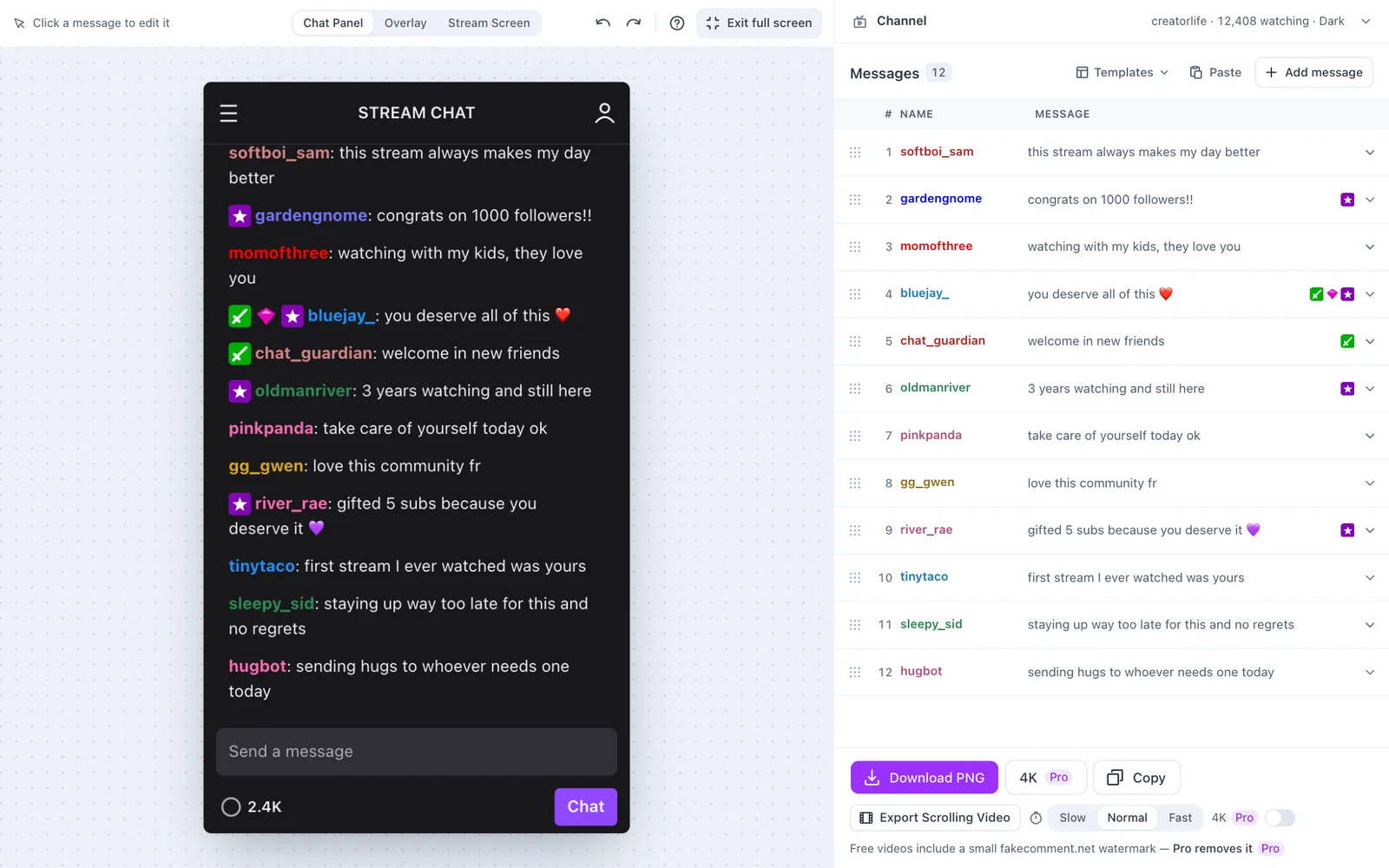
The editor fits your screen, so the preview, the list and the export stay in view while you work. The numbers in the picture:
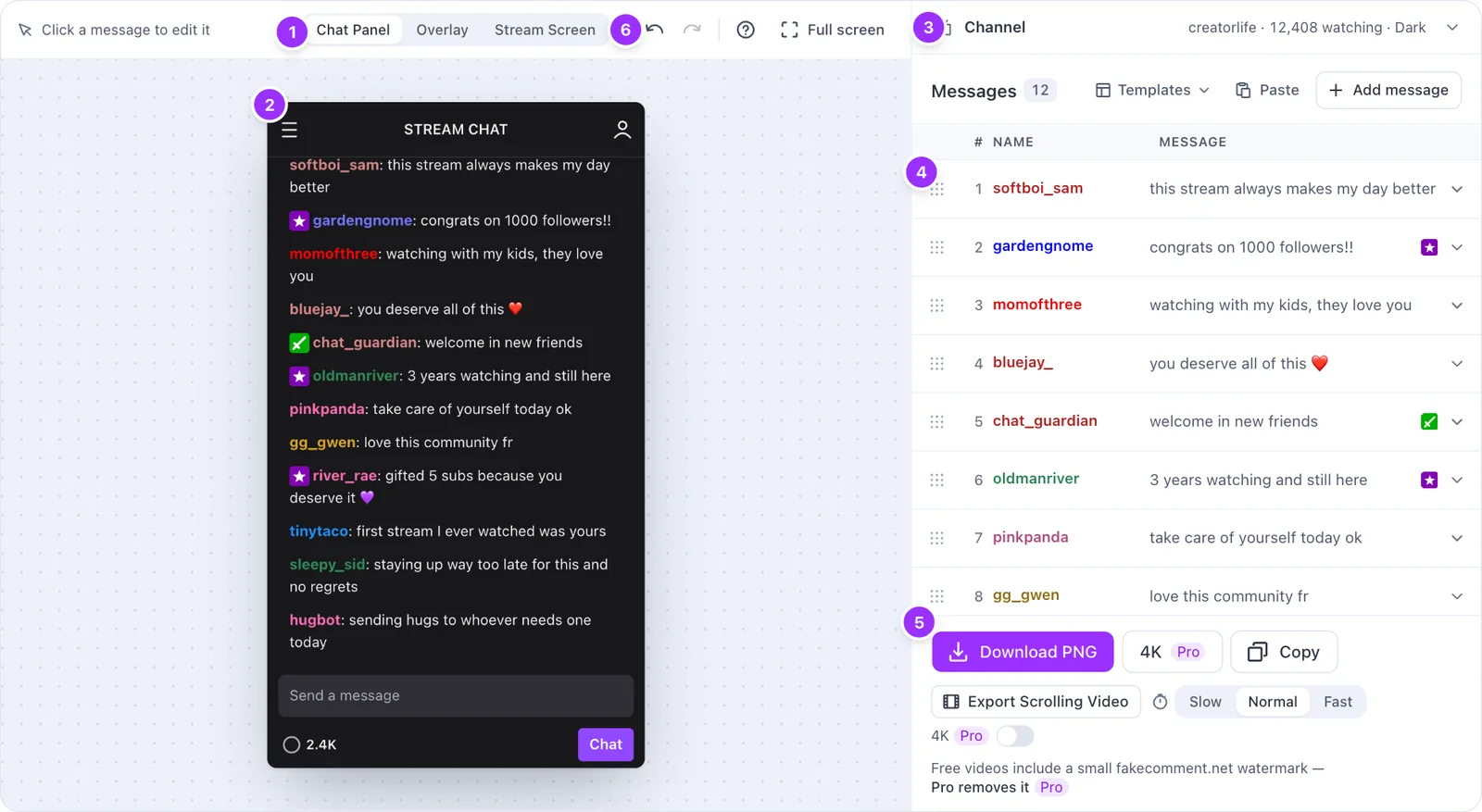
- Layout: Chat Panel, Overlay or Stream Screen.
- The preview is exactly what you export. Click a message in it to edit that message.
- Channel: name, viewers and theme, folded into one line until you open it. Open it and it takes the panel, with the list folded to one line; click that line or a message to go back.
- The messages, one row each. This list is the only part that scrolls.
- Export: Download PNG, 4K, Copy and the scrolling video.
- Undo and redo, Tips & shortcuts, and Full screen.
Add and edit messages
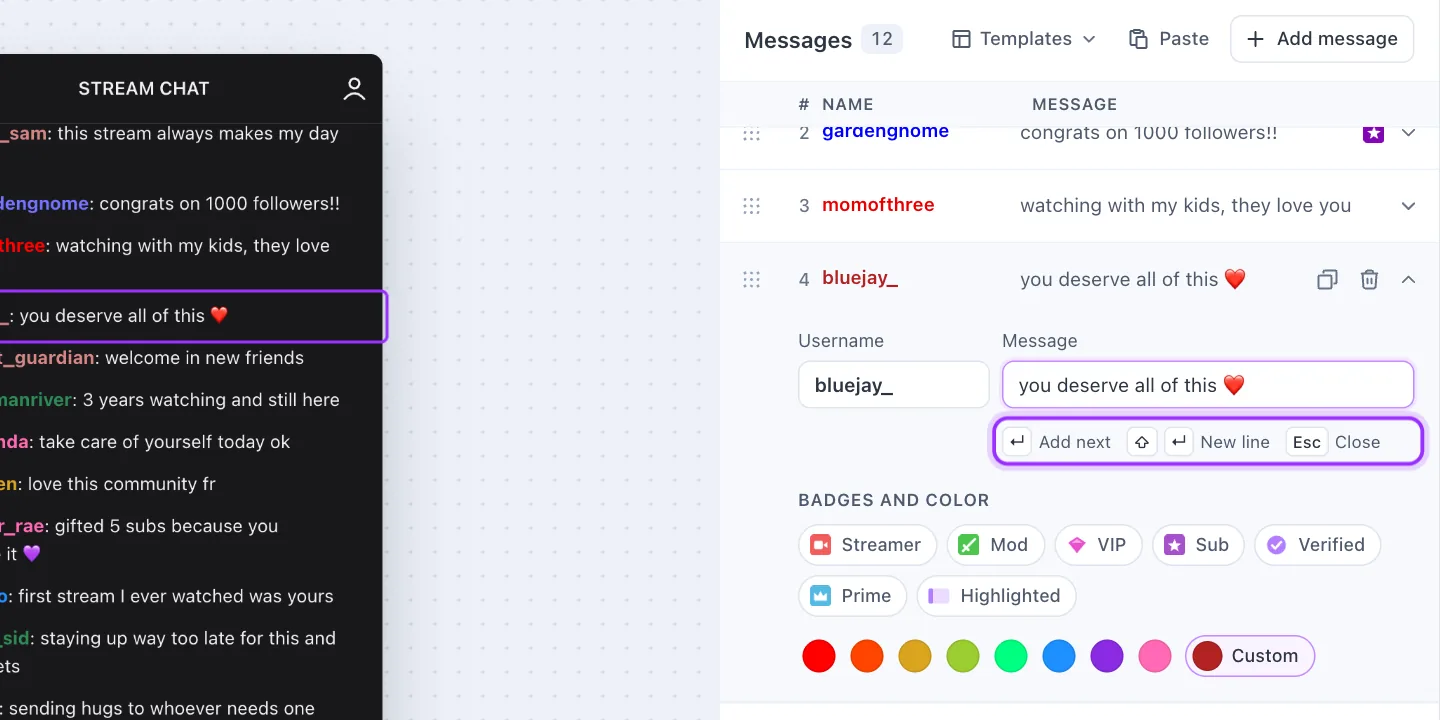
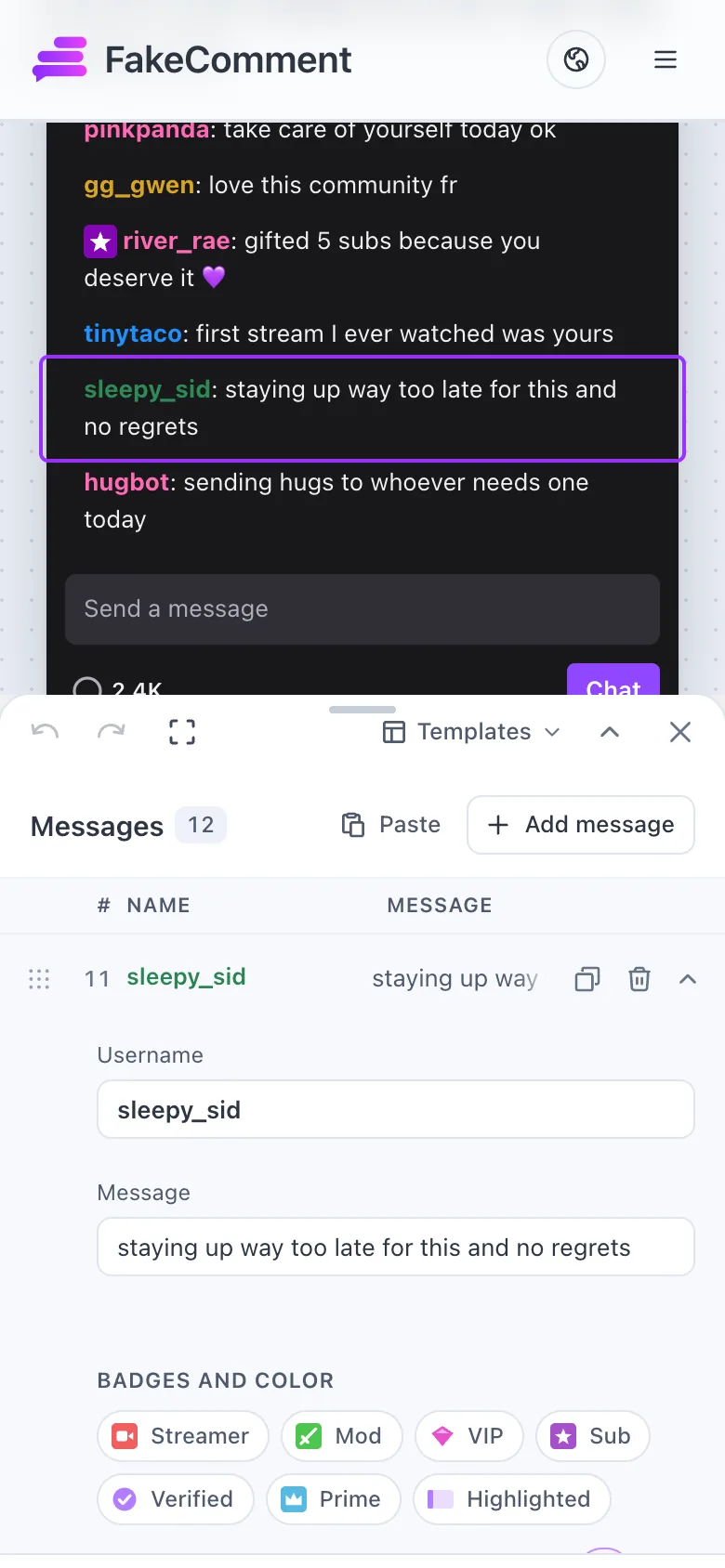
Click a row, or the message in the preview, to open it; the caret lands in the message, so you can type at once. Enter adds the next message right below, with a new viewer’s name already filled in. Shift+Enter starts a new line inside the message, and Esc closes the row. Add message, in the list header, adds one at the end.
Badges and color
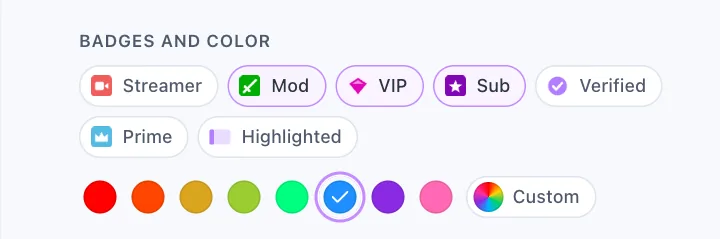
Under Badges and color, turn on the badges this viewer has (Streamer, Mod, VIP, Sub, Verified, Prime), or Highlighted for a channel-points message, then pick a name color. Custom takes any hex color.
Reorder
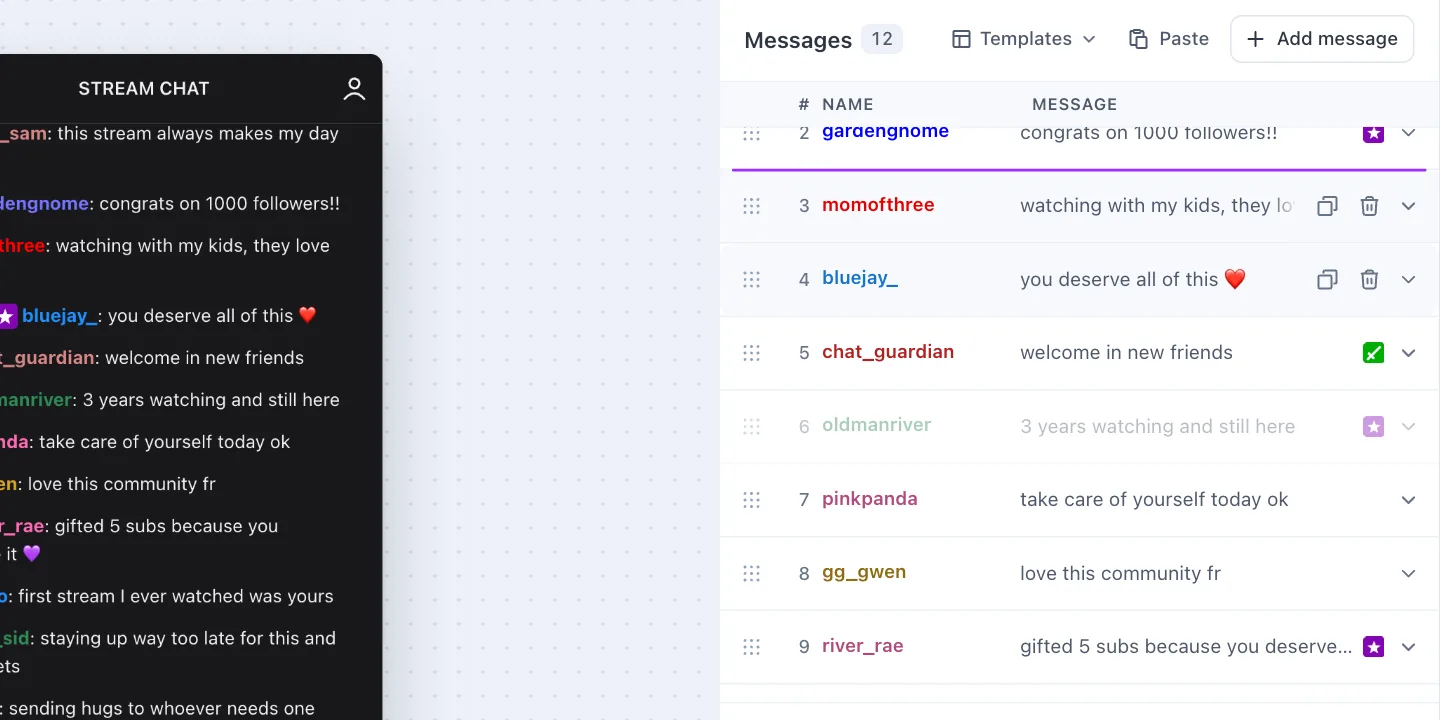
Drag a row by its dots; a purple line shows where it will land. With a keyboard, Tab to the dots and press the up and down arrows.
Paste a whole chat, or start from a template
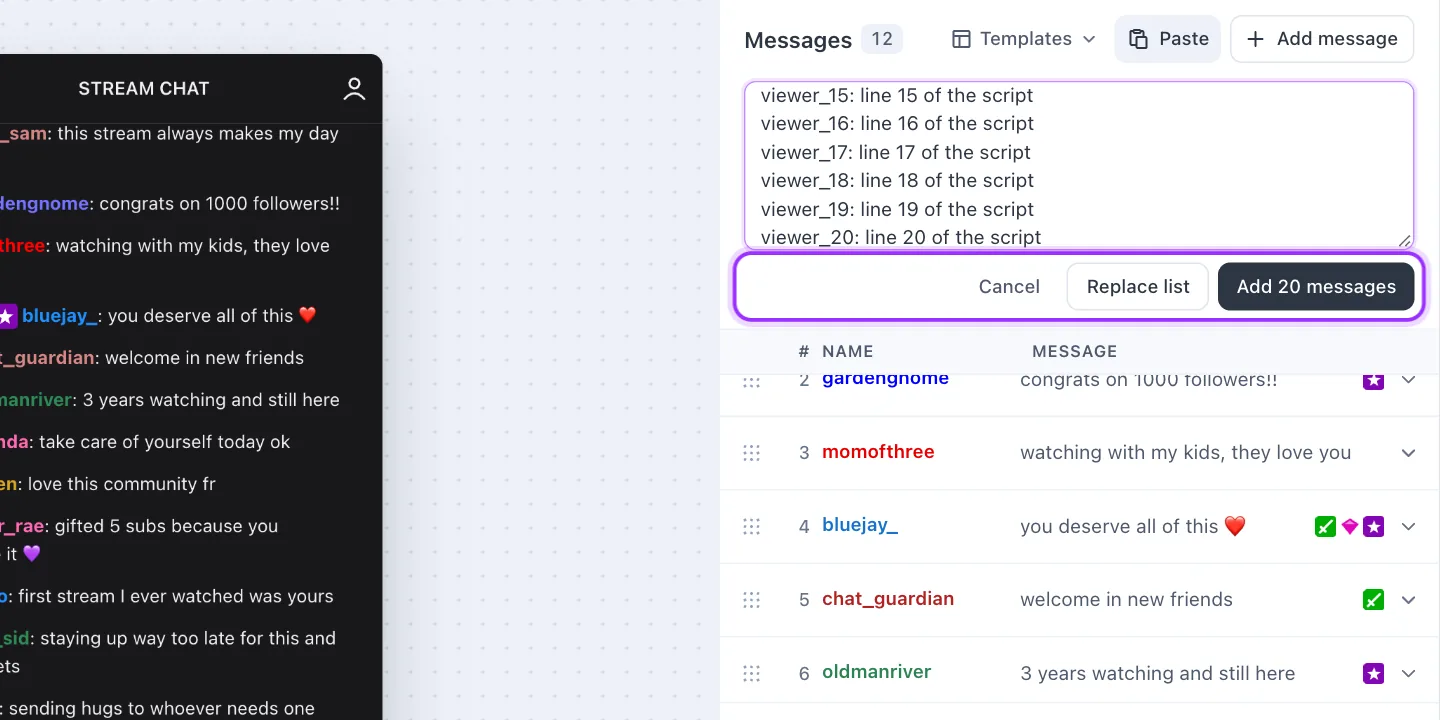
Paste opens a box: one message per line, written as name: message. “Add 20 messages” puts them after the ones you have; “Replace list” swaps the whole list for them. Templates replaces the list with a ready-made chat, and asks first if you have edited yours.
Undo
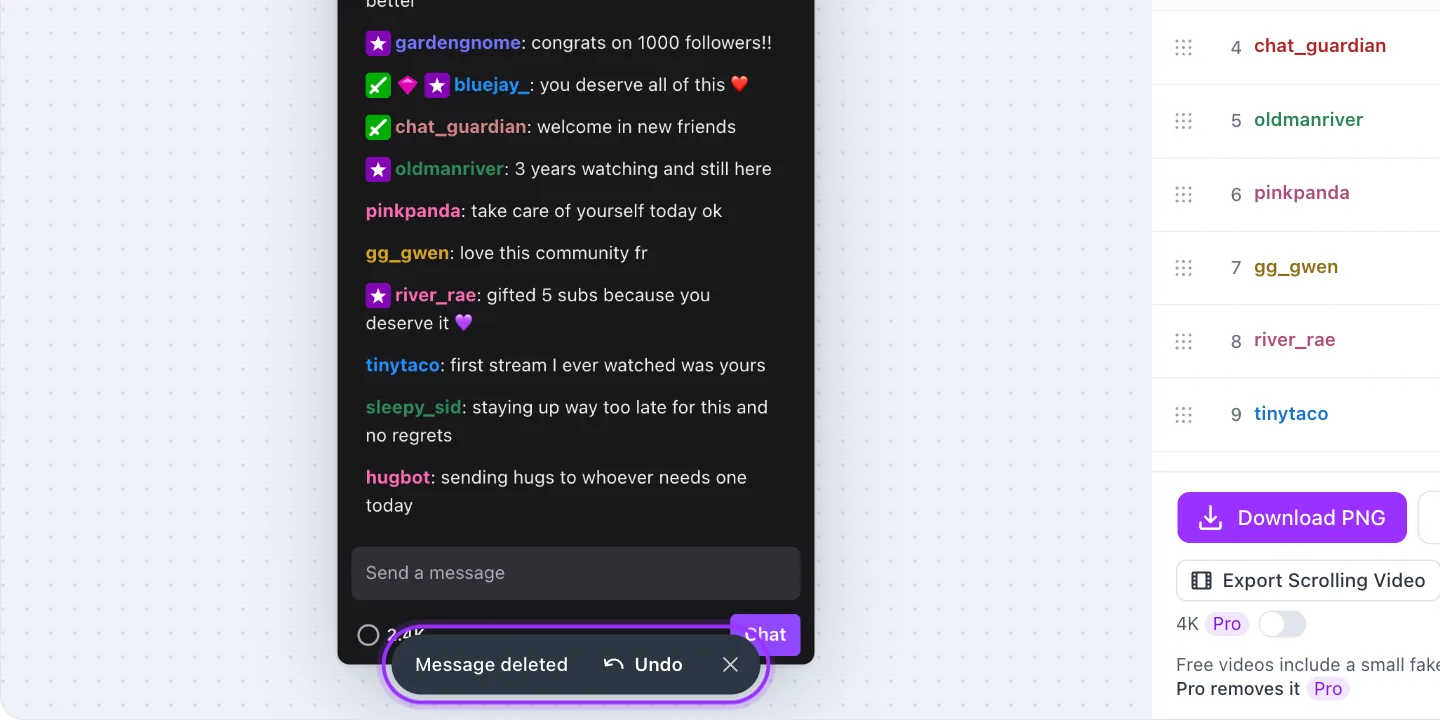
Deleting a message, pasting or applying a template shows an Undo button for a few seconds. Undo and redo are also at the top of the editor, and on the keyboard: ⌘Z and ⇧⌘Z on a Mac, Ctrl+Z and Ctrl+Shift+Z elsewhere.
Full screen
Full screen gives the preview and the list the whole window, with a wider list so long messages fit. Press Esc, or the button again, to go back to the page where you left it.
Tips & shortcuts
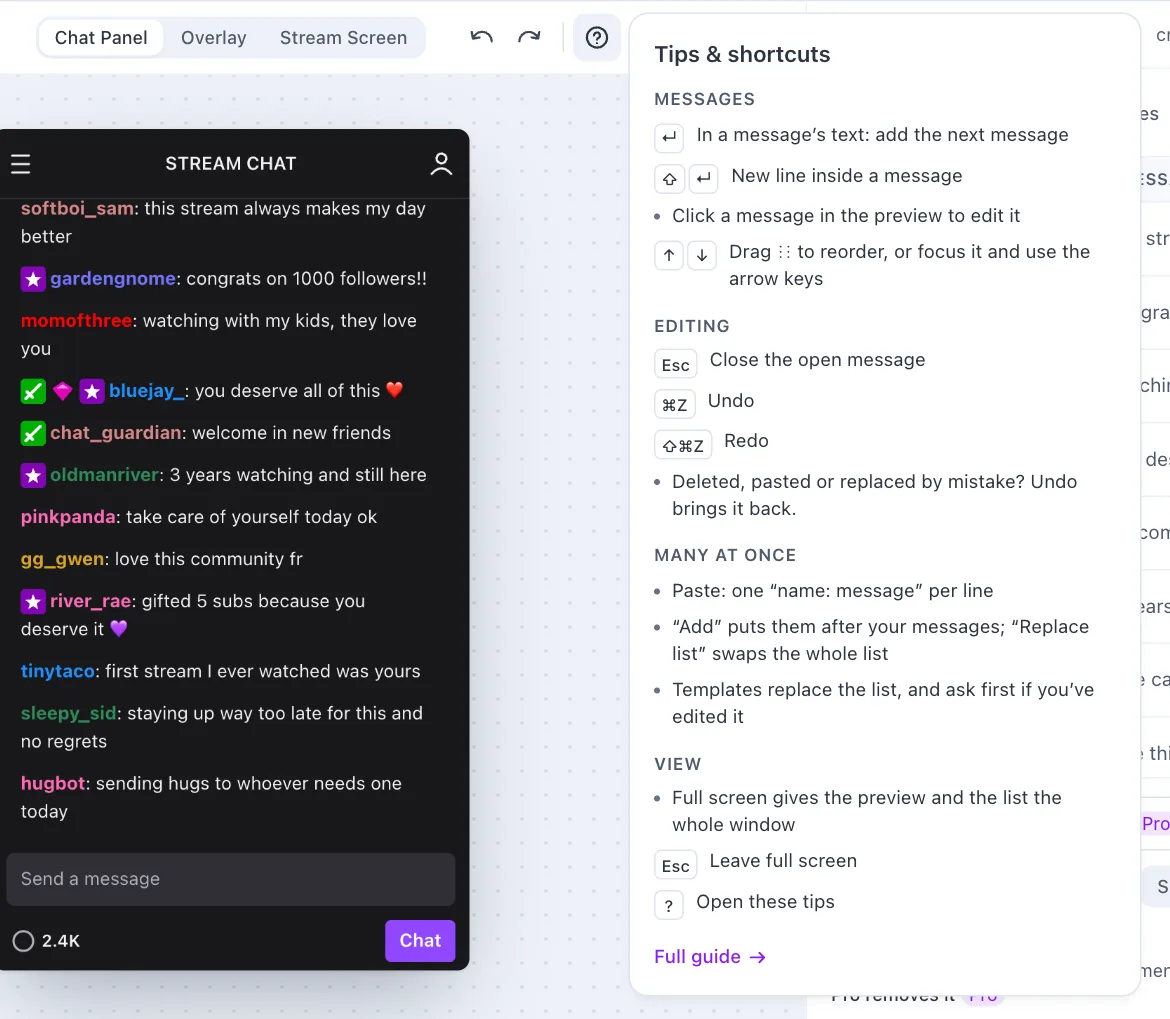
The ? button at the top of the editor, or the ? key, opens a short card with these keys and tips.
On a phone
The preview and the tab bar
The preview fills the editor, and the bar at the bottom opens Messages, Channel, Tips and Export.
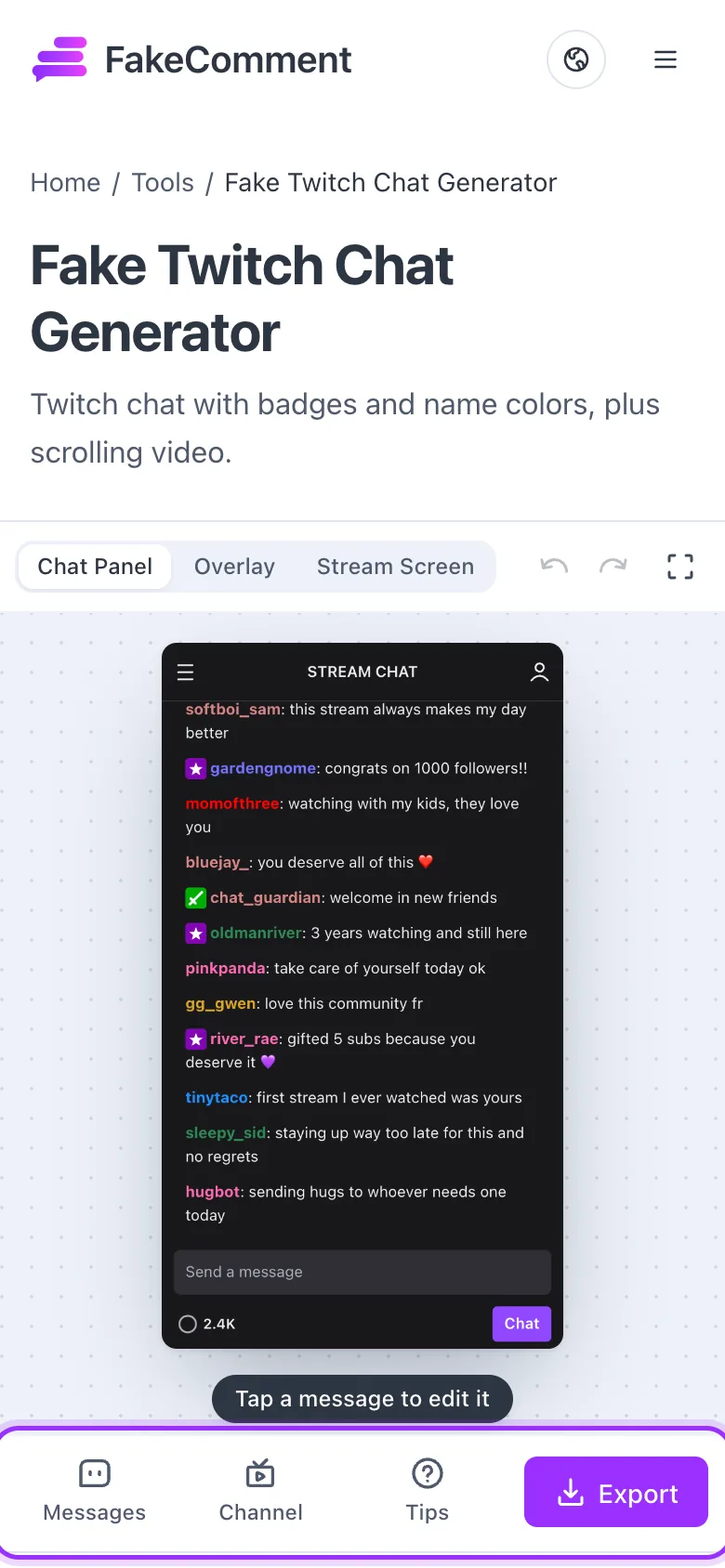
Edit in the panel
Tap a message in the preview, or Messages, and a panel comes up with the preview still showing above it. Drag its handle up for full height or down to close; the arrow button switches height too. An open message has Duplicate and Delete at the right of its row, and Move to top and Move to bottom at the end.
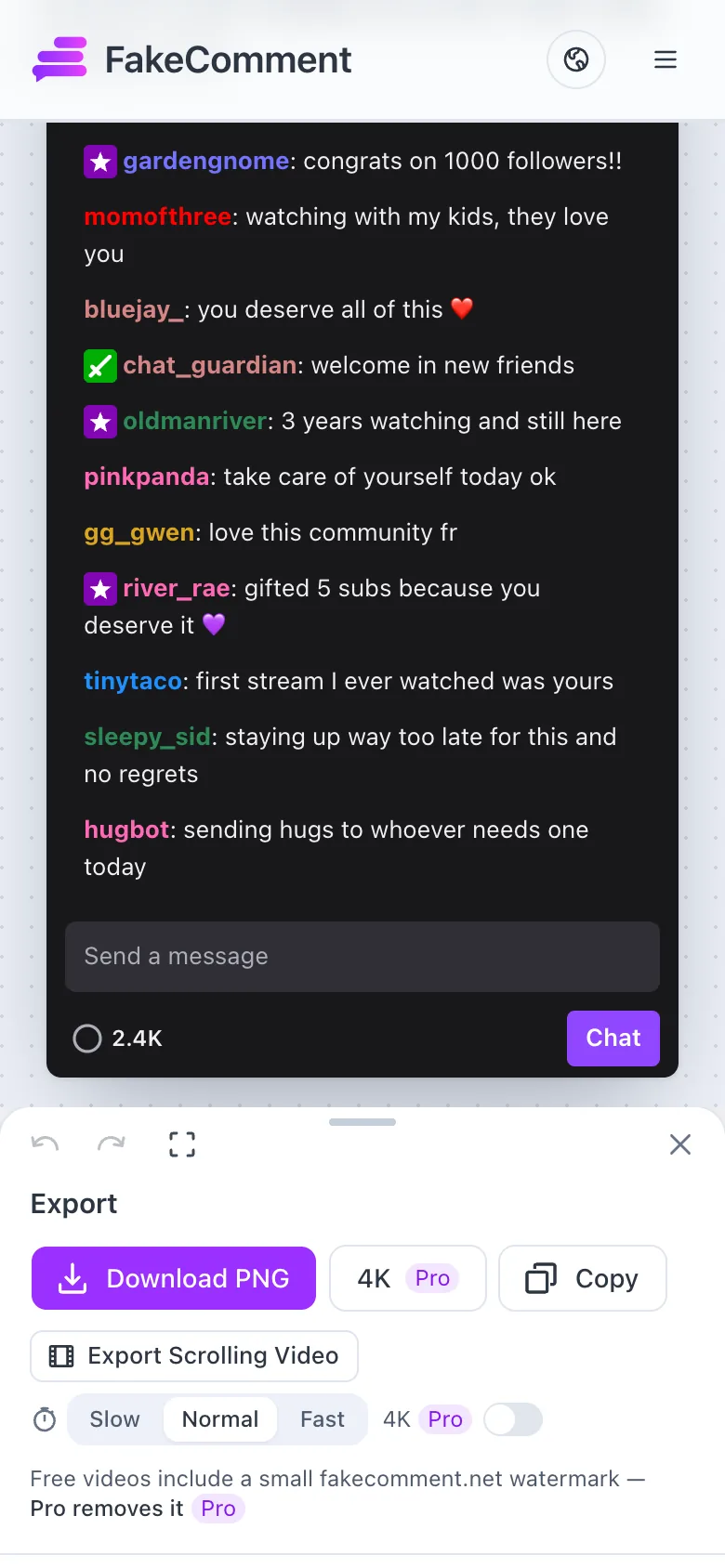
Export on a phone
Export opens the same choices as on a computer: Download PNG, 4K, Copy and the scrolling video.
On the TikTok tools
The TikTok Comment Generator and the TikTok Live Comment Generator use the same editor, with comments where Twitch has messages. What is different there:
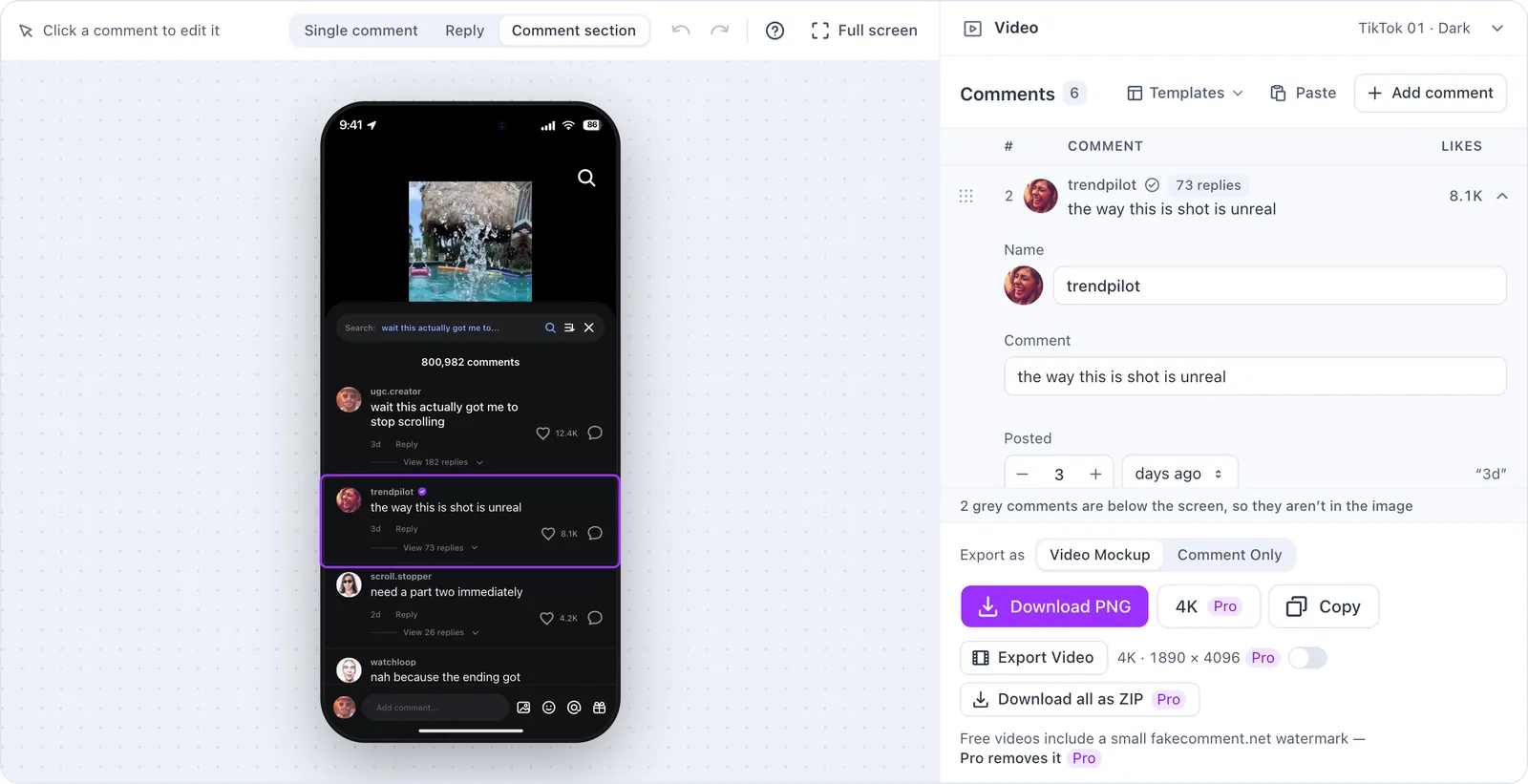
- Single comment, Reply and Comment section sit above the preview. Single comment and Reply are one comment, so they show a short form instead of a list; it is the comment that leads the Comment section.
- In Comment section, Add comment puts the new one on top, the way TikTok shows yours. Each row opens for the name, photo, text, posted time, likes, “View N replies” and Verified. Paste, Templates, reordering and Undo work as above.
- On TikTok Live, the list is the chat: new comments go at the foot, and Enter adds the next one. Your highlighted comment is pinned under the list, where the screen draws it.
- The Video group (LIVE screen on TikTok Live) holds the background frame, the theme and placement or the host, likes and viewers, and a TikTok link the AI can write comments for.
- The export bar starts with Export as: Video Mockup for the whole phone screen, or Comment Only for a transparent PNG. The video is a 3-second pop-in on green, and the comment tool adds Download all as ZIP (Pro).
On the Instagram, YouTube and X comment tools
The Instagram Comment Generator, the YouTube Comment Generator and the X Reply Generator use the same editor. There the list holds the replies, and the comment (on X, the original post) is the folded group above it: click it in the preview, or open the group, to edit its name, text, numbers and look. The preview is the mockup itself; click any reply in it to open its row.
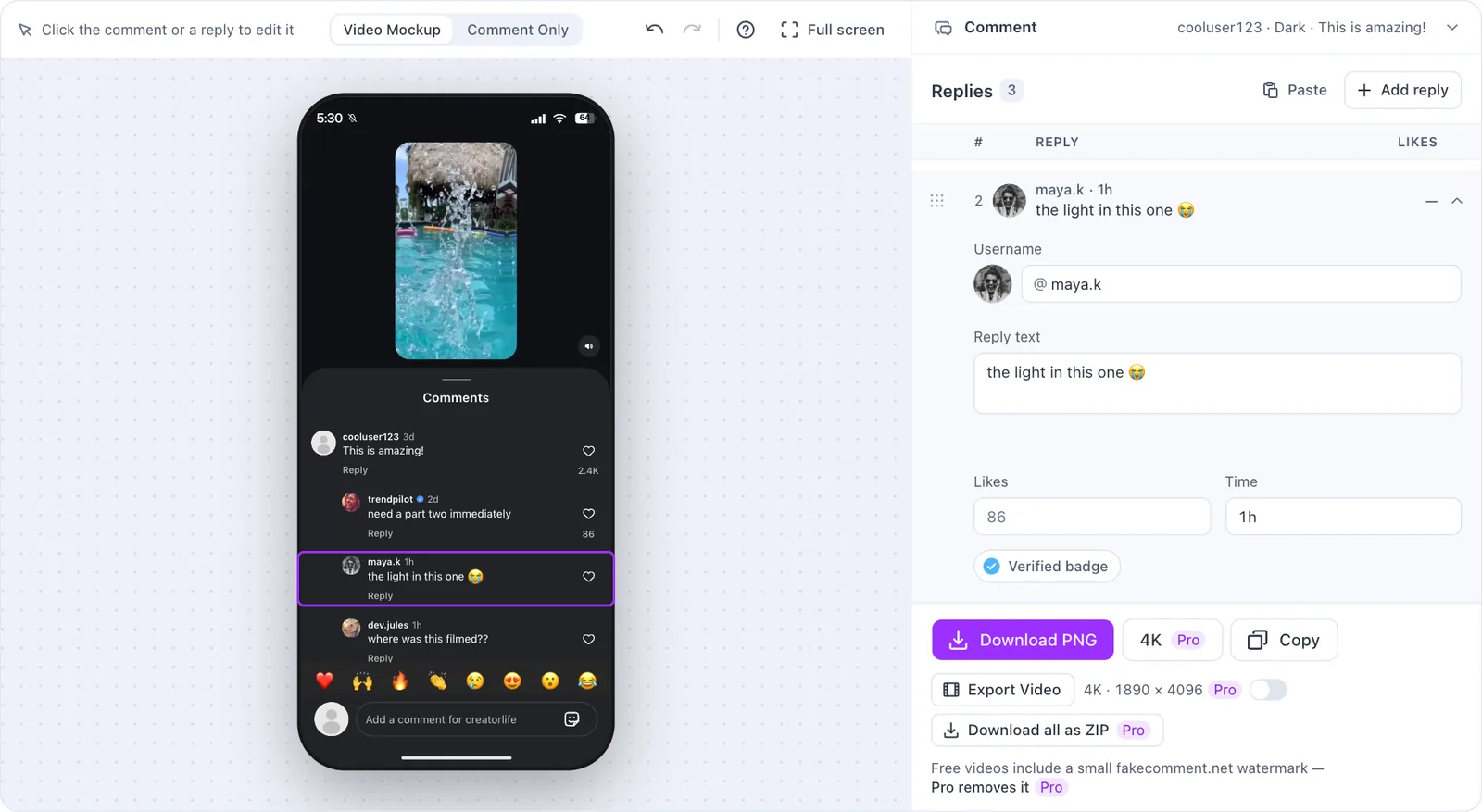
- Add reply puts a new reply where the app would: at the bottom on Instagram and YouTube, at the top, right under the post, on X.
- A reply the picture leaves out (below the edge of the phone screen, or in a look that draws no replies) is marked Not shown in the list.
- Paste takes one name: reply per line. Add puts them after your replies (before them on X); Replace list swaps them all.
- There are no templates, and Enter starts a new line in a reply instead of adding one. Esc closes the open reply; undo, drag and the arrow keys work as above.
- The export bar has Download PNG, Copy and a 3-second pop-in video, plus 4K and a ZIP with one PNG for each comment and reply with Pro. Video Mockup or Comment Only, above the preview, decides what they capture.
Which tools use this editor
Every chat and comment generator on the site: the live chat tools in the table below, the TikTok tools (comments, replies and LIVE) and the Instagram, YouTube and X comment tools, which have their own sections above.
What each live chat tool adds
Rows open, add, move, paste and undo the same way in every tool. What you can set on a line, and what the settings group above the list holds, depends on the tool:
| Tool | On a line | Settings group |
|---|---|---|
| Fake Twitch Chat Generator | Name, message, badges (Streamer, Mod, VIP, Sub, Verified, Prime), Highlighted, name color | Channel: name, viewers, stream title and frame, Dark or Light, the welcome line |
| Fake Kick Chat Generator | Name, message, badges (Streamer, Mod, VIP, OG, Sub), name color | Channel: name, viewers, stream title and frame, chat mode, the “New messages” divider, Lifetime Top Gifters |
| Fake YouTube Live Chat | Name, message, role (Viewer, Member, Mod, Owner), Verified, fan rank, Super Chat ($2–$100), avatar (letter, stock photo or your own) | Stream: channel, Watching now, stream title and frame, Light or Dark, welcome notice, pinned message |
| Fake Instagram Live Generator | Comments and Joined lines (with “and N others”), a photo; Instagram’s own notice, Follow card and badge rows move like comments | Live settings in four folded groups: Live room, Screen, Bottom bar, Prompts |
| Fake Live Chat Generator | Name, message, name color | Stream: host, viewers, title, background (sample, gradient or your own) |
On Fake Live Chat, the Generic style uses this editor, and each platform style opens that tool’s own editor.