How to Make a Fake Live Chat for a YouTube or Twitch Video (Free)
Make a fake YouTube live chat or Twitch chat for a video: write the messages, export a scrolling chat video or a transparent overlay, and key it into iMovie, CapCut, Premiere, DaVinci Resolve or OBS. Tested step by step.
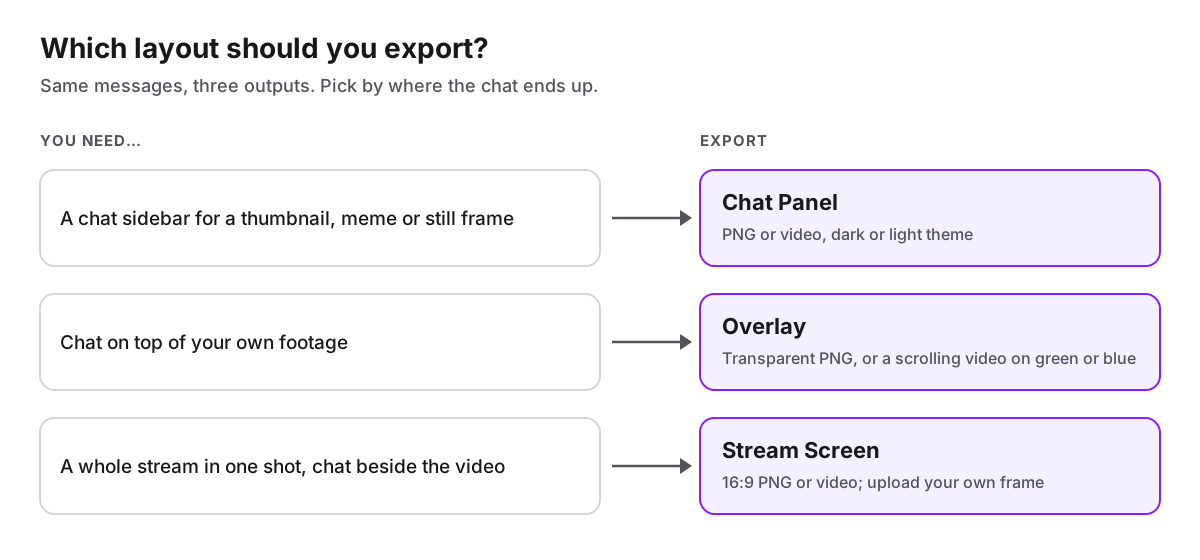
Most people start by typing chat messages as text layers in their editor. That works for three lines and falls apart at thirty: every message needs its own layer, its own color and its own timing. The better question is what the chat has to do in the video, because that decides the file you need:
- A still frame (a thumbnail, a meme, a reaction screenshot): a PNG of the chat.
- A chat that scrolls over your footage: a scrolling chat video on a green or blue background, keyed out in your editor.
- A whole stream in one shot: a 16:9 stream screen with the chat beside it.
The short version
Write the messages in a fake live chat generator, export the layout you need, and layer it over your video. FakeComment's Fake Twitch Chat Generator and Fake YouTube Live Chat do this in the browser without an account. Free videos hold up to 12 messages and carry a small corner mark; Pro removes the mark and allows longer, HD videos.
I tested the whole workflow on October 1, 2026 in Chrome on a Mac: a ten-line Twitch script, three layouts, a scrolling video, and the chroma key in iMovie. The screenshots below are from that test.
Which way of making a fake live chat fits your video?
| Method | What you get | Good for | Watch out for |
|---|---|---|---|
| A fake chat generator (Twitch, YouTube Live, Kick, no branding) | PNG stills, a transparent overlay, a scrolling chat video | Skits, reaction edits, explainers: any chat you script | Free videos stop at 12 messages and carry a small mark |
| Text layers in your editor (Premiere Pro, After Effects, CapCut) | Exactly what you animate | Full control of every frame | One layer per message; slow past a handful of lines |
| A real chat overlay (for example Social Stream Ninja) | Your channel's live chat in OBS as a browser source | Showing real viewers while you stream | Shows only real messages; no video file to edit |
| An open-source simulator from GitHub | Depends on the project | Developers who want to change the code | Setup required; StreamChat-Simulator, for example, runs inside OBS and needs Python |
For a scripted scene, a generator is the fastest route: you decide every message and when it appears, and you get a file you can cut like any other clip.
How do I make a fake Twitch chat for a video?
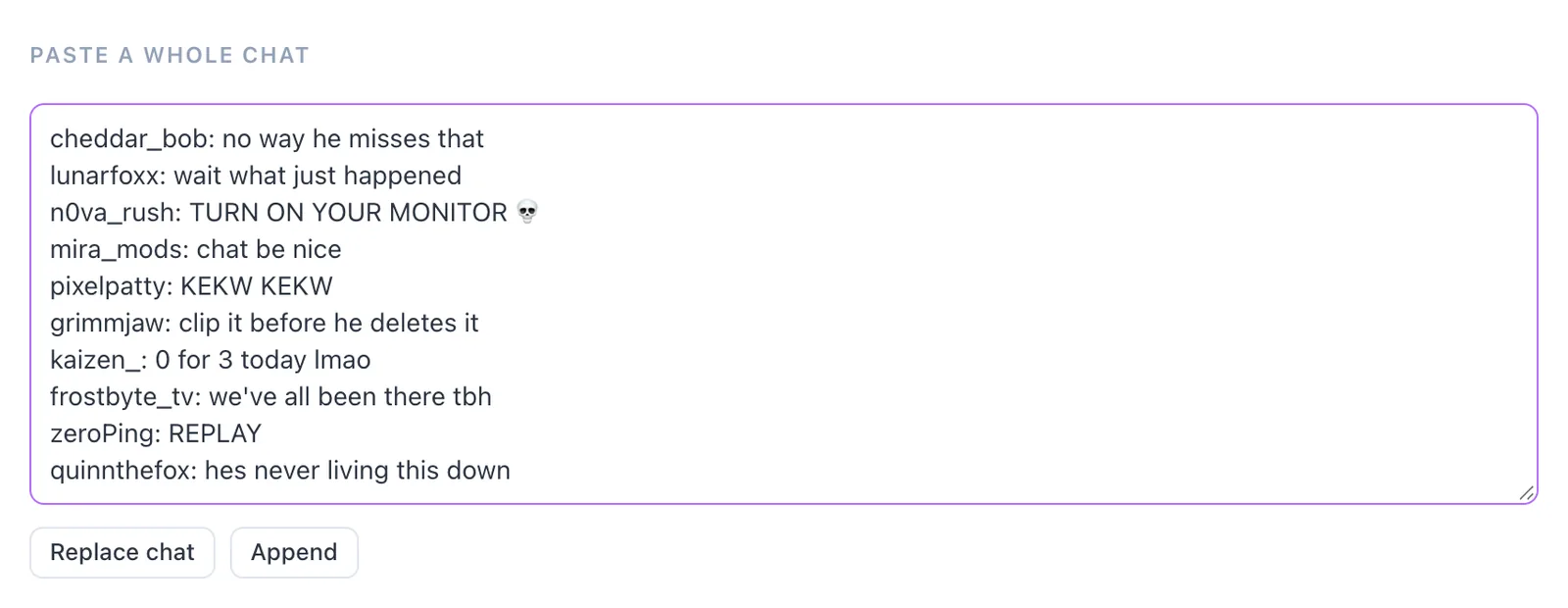
1. Paste the script. Open the Fake Twitch Chat Generator, scroll to "Paste a whole chat" and paste one username: message per line. Replace chat swaps out the sample chat; Append adds to it. You can also start from a ready-made chat (Hype, Gaming fail, Just Chatting, Wholesome) and edit from there.
2. Cast the chat. Every message has its own username color and badge toggles: Streamer, Mod, VIP, Sub, Verified and Prime, plus Highlighted for a channel-points message. I gave one viewer a Mod badge and two viewers a Sub badge; a chat where everyone has a badge looks staged.
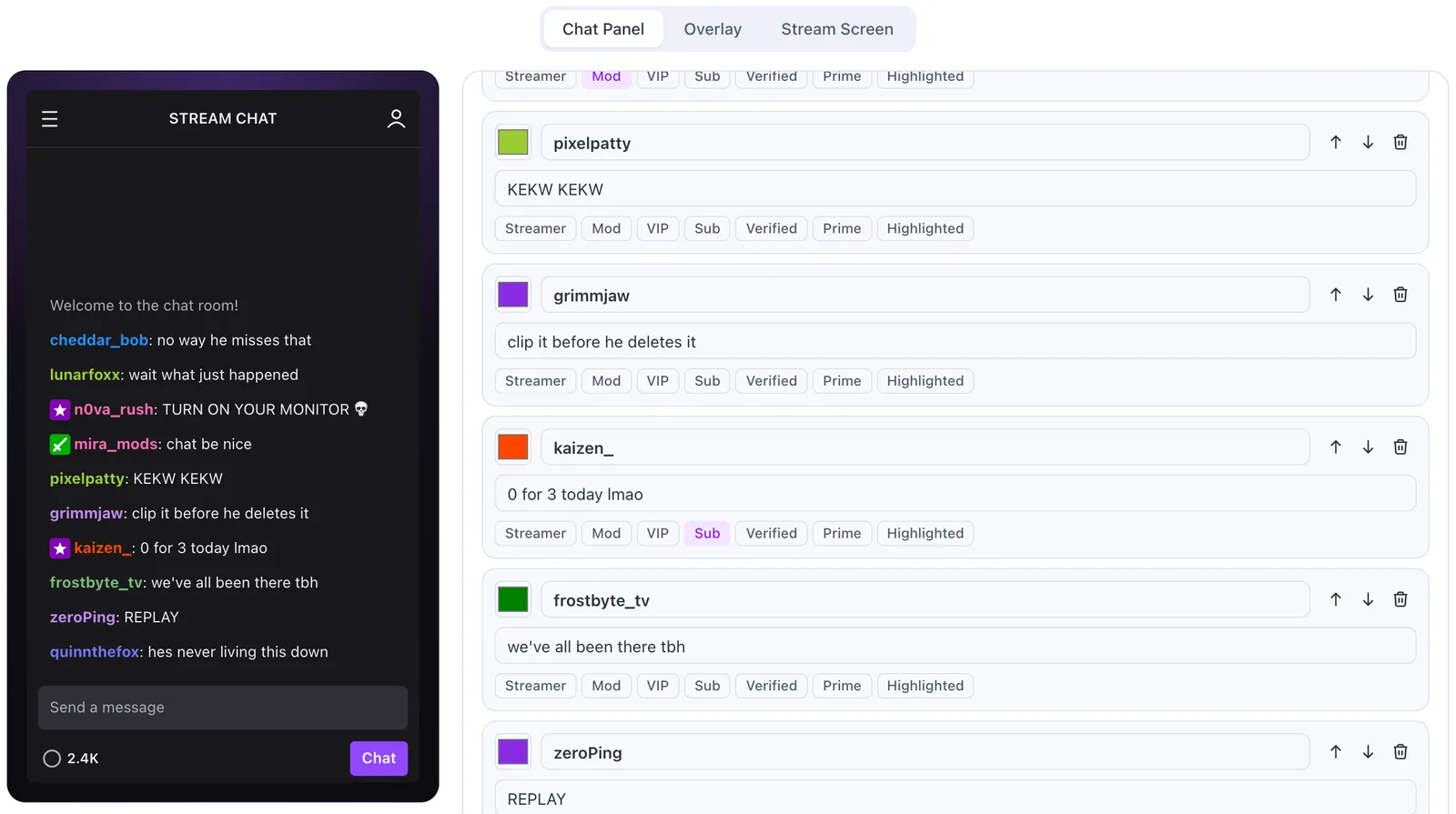
3. Pick a layout. The same messages export three ways:
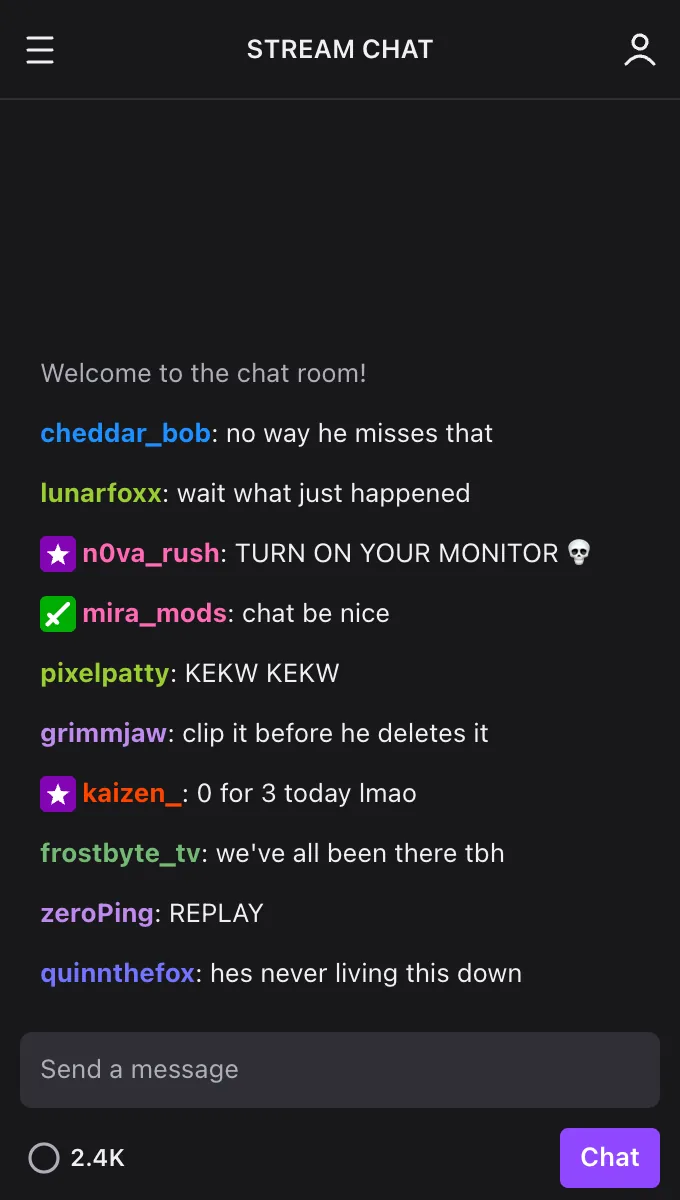
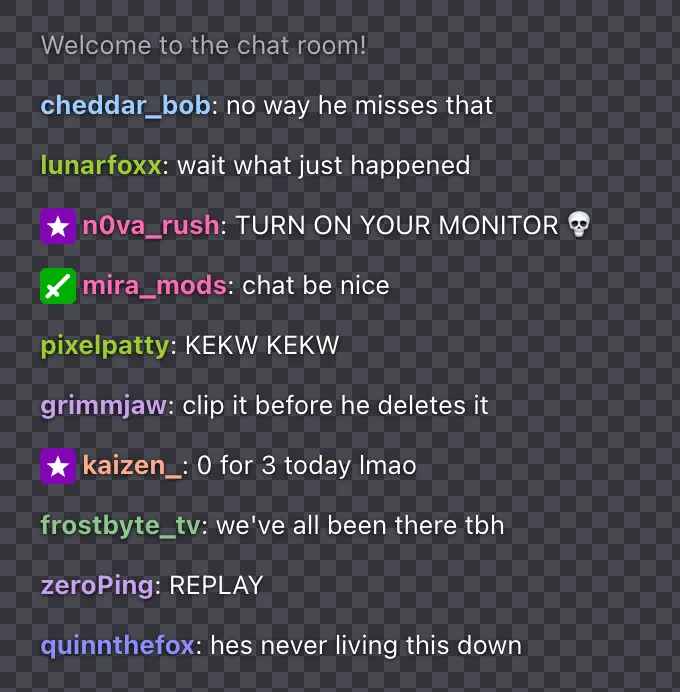
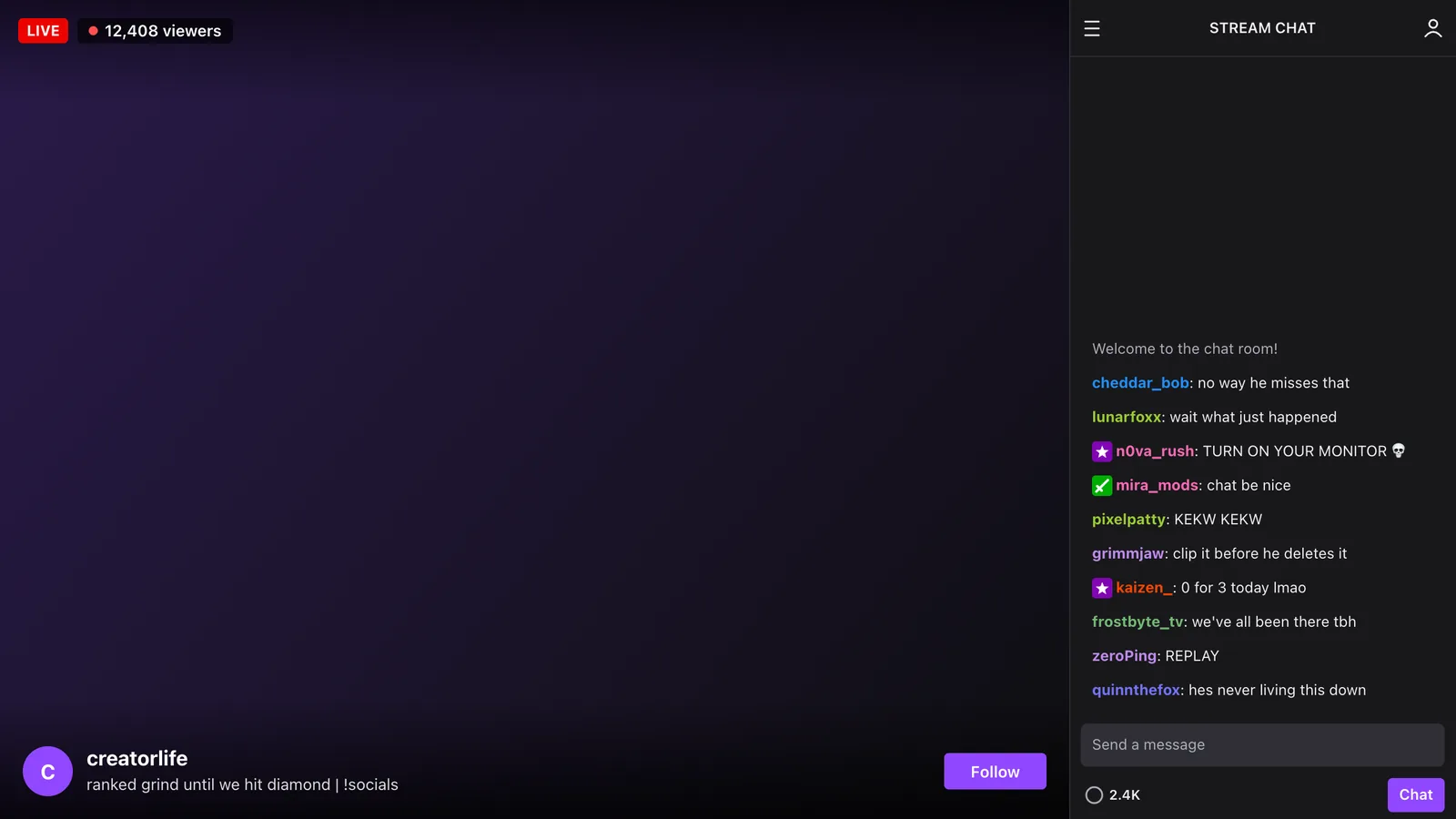
4. Export. Download PNG gives you a still. For motion, choose the message speed (Slow, Normal or Fast); on the Overlay layout, also pick the key color. The tool marks one as Best: it checks how many username and badge colors sit close to green and to blue, and suggests the key fewer of them clash with. Then click Export Scrolling Video. The messages pop in one at a time, the way a real chat fills up.

My ten-line chat at Normal speed came out as a 9.4-second H.264 MP4, 680 × 692 at 30 fps.
How do I make a fake YouTube live chat?
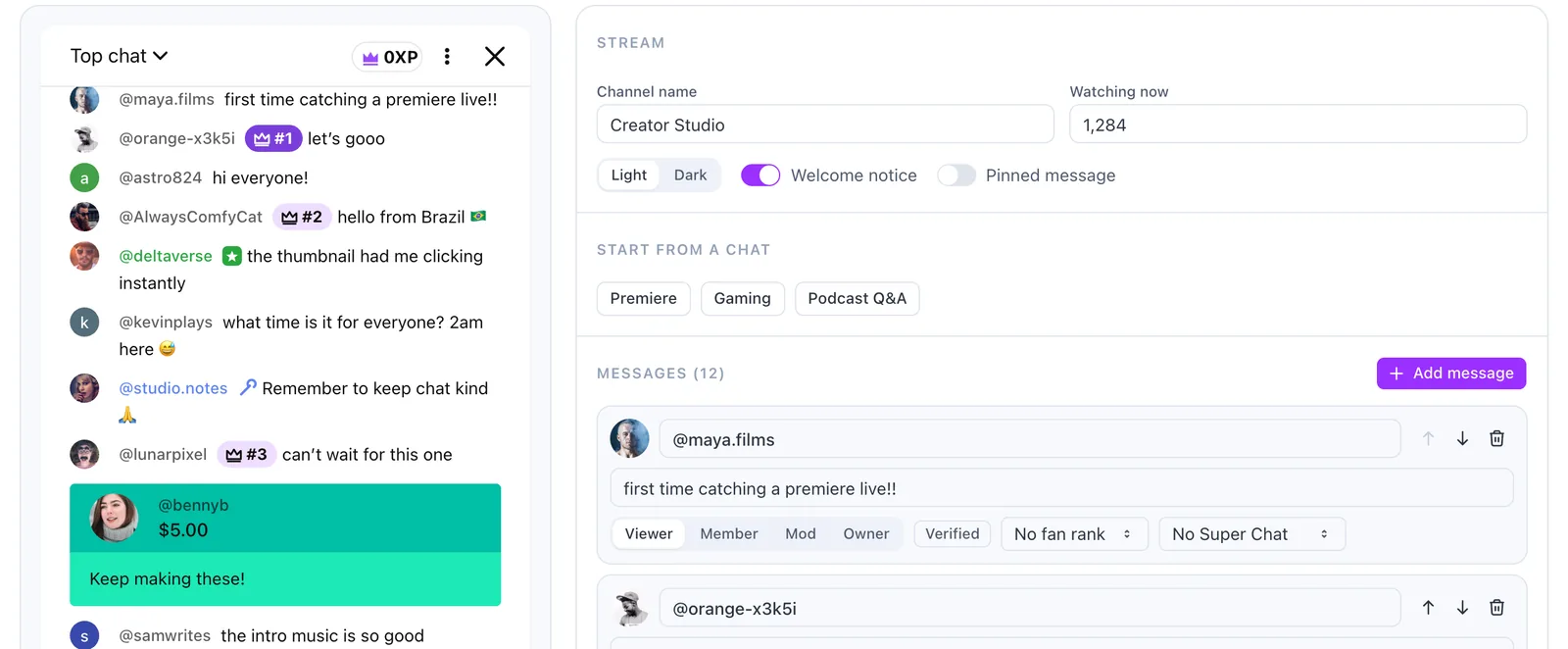
Fake YouTube Live Chat works the same way, with YouTube's own pieces:
- Start from Premiere, Gaming or Podcast Q&A, or paste one
@name: messageper line. - Set each line as Viewer, Member, Mod or Owner, add a verified check or a fan rank (#1 to #5), and turn any line into a Super Chat from $2 to $100.
- Set the channel name, the "watching now" count, light or dark theme, the welcome notice and an optional pinned message.
- Choose Chat Panel, Overlay or Stream Screen and export as above.
Kick has its own Fake Kick Chat Generator with the same three layouts. For a chat without any platform's look, start on the Fake Live Chat Generator.
Which layout should I export?
How do I put the chat over my video?
The Overlay video is recorded on a solid green or blue background. Put it on a track above your footage and remove that color with a chroma key.
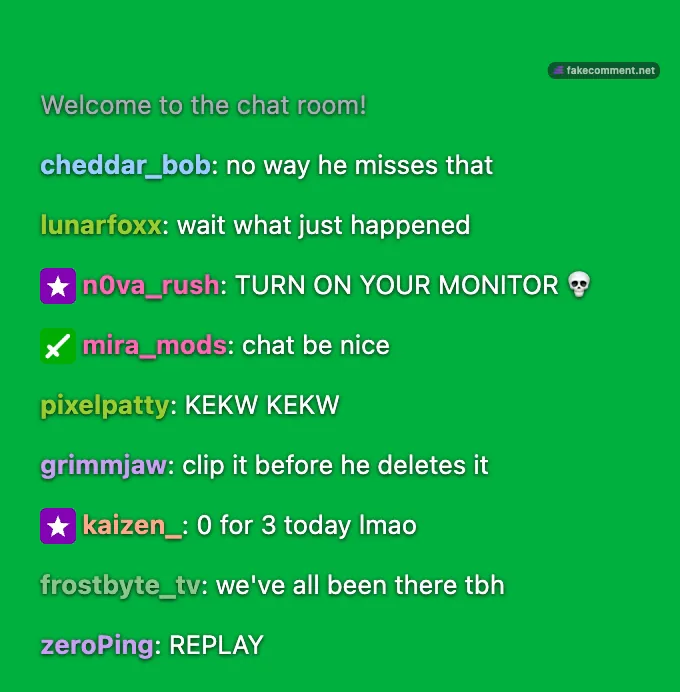
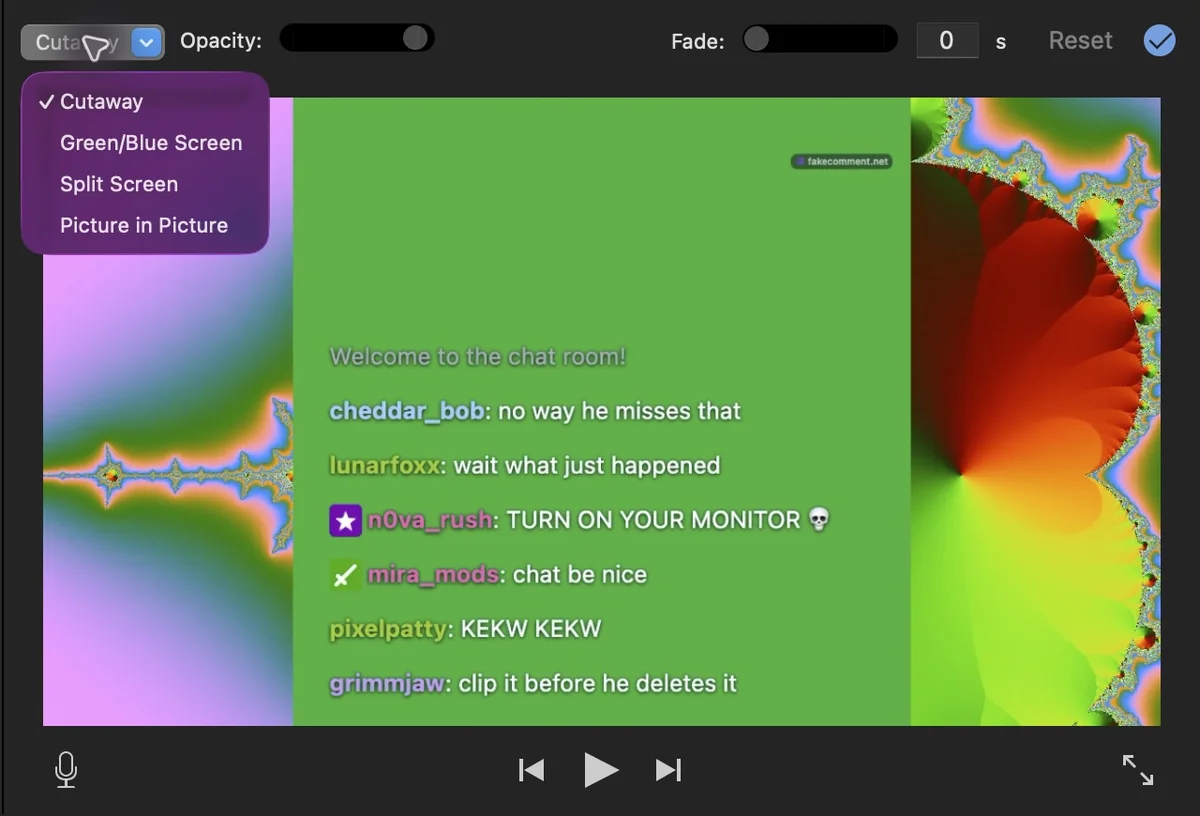
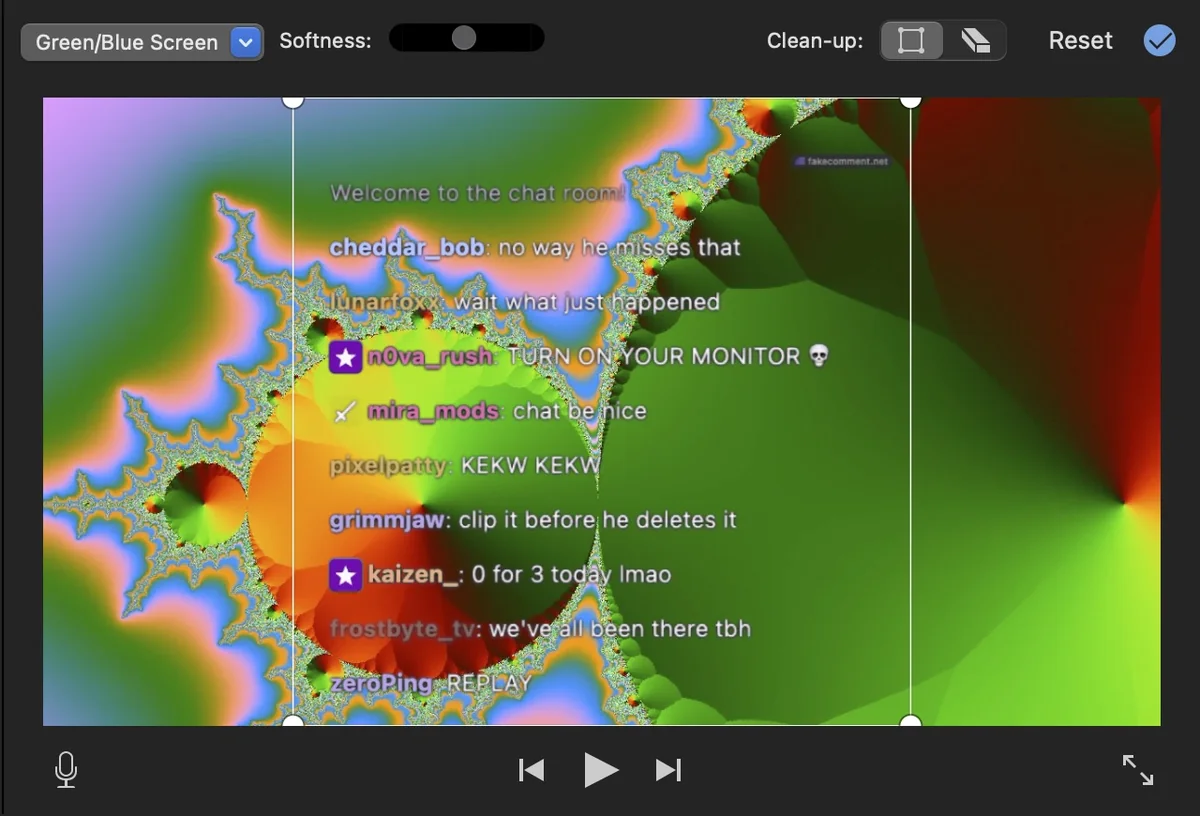
- iMovie (Mac): drag the chat clip above your main clip in the timeline, click the video overlay settings button above the viewer and choose Green/Blue Screen.
- CapCut: add the chat video as an overlay, select it, open Remove background and choose Chroma key, then pick the green (or blue) with the color picker and adjust the intensity until the edges are clean.
- Premiere Pro: drag the chat clip to a track above your footage, apply Effects → Video Effects → Keying → Ultra Key, and set the key color with the eyedropper.
- DaVinci Resolve: key the clip on the Color page with the qualifier (select the green and output it as alpha), or use the Delta Keyer in Fusion.
- OBS: add the video as a Media Source, right-click it → Filters → Effect Filters → Chroma Key, and choose green or blue.
For a still frame, skip the key: the Overlay PNG already has a transparent background. The CapCut overlay tutorial covers placing and animating a transparent PNG.
How long can a free chat video be?
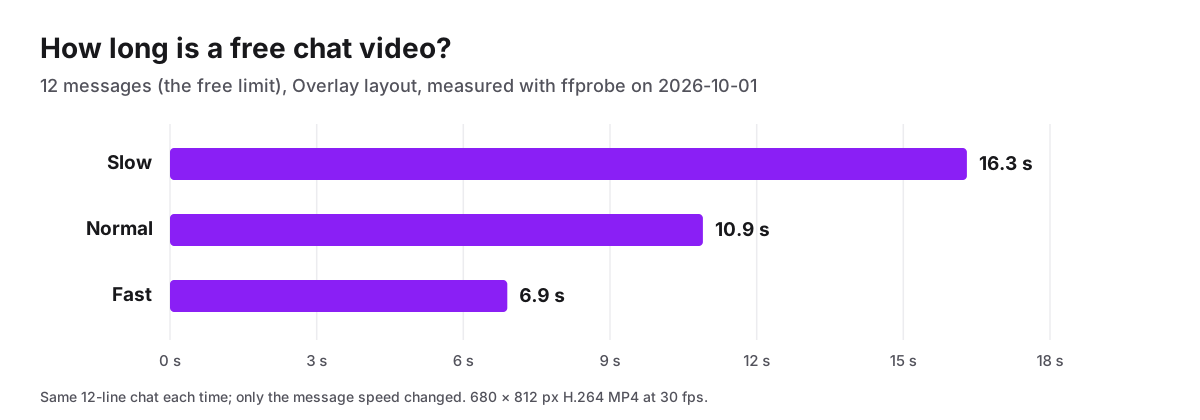
Free chat videos hold up to 12 messages, so the length comes from the message speed. I exported the same 12-line chat three times:
| Message speed | 12 messages | Size |
|---|---|---|
| Slow | 16.3 s | 680 × 812 |
| Normal | 10.9 s | 680 × 812 |
| Fast | 6.9 s | 680 × 812 |
For a longer scene, either split it into several 12-message clips and cut between them, or use Pro, which allows chats of any length, adds HD video and removes the corner mark.
What makes a fake chat look real?
- Pace it to the scene. Slow suits a calm Just Chatting stream; Fast suits a clutch moment. Real chats speed up right after something happens on screen.
- Mix the cast. A mod or two, a few subs or members, mostly plain viewers.
- Write like chat. Short lines, lowercase, repeated words ("clip it clip it"), questions the streamer never answers.
- Match the numbers. Use a viewer count and title that fit the clip; a 12-viewer stream with a hype train looks off.
- Give the chat a calm patch of frame. Keyed over busy footage, coloured usernames lose contrast. Place the chat over a darker or plainer area, or use the Chat Panel layout, which brings its own background.
Scope
FakeComment makes mockups for skits, parody, tutorials and creative work. Don't use a fake chat to impersonate real people or to pass it off as real engagement. FakeComment is independent and isn't affiliated with Twitch, YouTube or Kick; badge icons are simplified look-alikes, not the platforms' own artwork.
Frequently asked questions
Can I make a fake YouTube live chat for free?
Yes. FakeComment's Fake YouTube Live Chat runs in the browser without an account. PNG stills have no watermark. Scrolling chat videos are free up to 12 messages and carry a small fakecomment.net mark in the corner; Pro removes the mark and allows longer chats.
How do I put a fake Twitch chat on top of my video?
Export the Overlay layout as a scrolling video on a green or blue background, place it on a track above your footage, and remove the background with a chroma key: Green/Blue Screen in iMovie, Chroma key in CapCut, Ultra Key in Premiere Pro, the Chroma Key filter in OBS.
How long can a free fake chat video be?
Free chat videos hold up to 12 messages, so the length depends on the message speed. In my test, 12 messages ran 16.3 seconds at Slow, 10.9 seconds at Normal and 6.9 seconds at Fast.
Can I paste my own script?
Yes. Paste the whole chat as one username: message per line, choose Replace chat, then adjust names, colors and badges line by line.
Does the fake Twitch chat include emotes?
Emoji work in any message. Twitch and third-party emote images such as Kappa or PogChamp are not included; typing the emote name as text (KEKW, LUL) is how many real chats read anyway.
Can a fake chat video show a real stream's chat?
No. A fake chat generator only shows the messages you write. To show your real live chat while streaming, use a chat overlay that reads your channel's chat, such as Social Stream Ninja in OBS.
Try the Related Tools
Related Guides
More how-tos on comment stickers, overlays, and mockups.
Free Fake Instagram Comment Generators, Tested: Watermarks, Signup and Export Size (2026)
I made the same Instagram comment in ten free generators and downloaded the free PNG from each. Which ones watermark it, which need an account, which give a transparent sticker, and how big each file is.
TokComment Alternatives: 5 Free TikTok Comment Generators Compared (2026)
An honest comparison of TokComment alternatives in 2026: FakeComment, Postfully, GetMockly, TheFake.design, and EasyComment — compared on comment threads, AI writing, export options, pricing, and platform coverage.
How AI Fake Comment Writers Work (And When to Use One)
How AI fake comment writers actually work under the hood, what makes a good prompt, when to use them instead of writing manually, and how to pipe the output into a screenshot mockup tool.